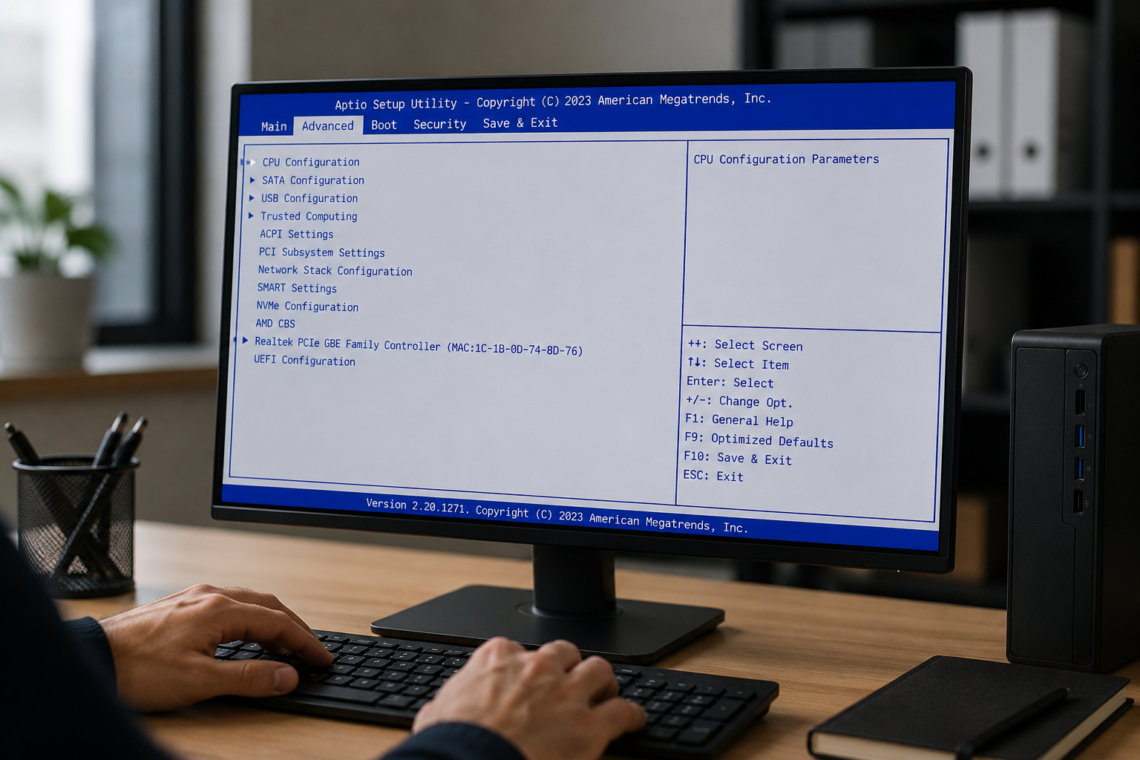
Advanced settings utility tools are designed to help users manage deeper system configurations that are not usually available through standard menus. These utilities are commonly used in enterprise servers, desktop computers, laptops, and even some mobile devices. They give users more control over firmware, hardware behavior, boot settings, virtualization, security options, and system performance.
Many IT professionals use advanced settings utility software to configure systems more efficiently, especially in large environments where multiple devices need the same settings. At the same time, regular users may access advanced settings to solve system problems, improve performance, or enable features that are disabled by default.
Although these tools can be very useful, they should always be used carefully. A single incorrect configuration can create boot issues, hardware conflicts, or system instability. Understanding how advanced settings utility works before making changes is important for both safety and long-term system reliability.
Understanding Advanced Settings Utility
The term “advanced settings utility” can refer to different types of configuration tools depending on the device or operating system. In enterprise hardware environments, it often refers to utilities developed by companies like Lenovo and IBM for configuring server firmware settings remotely or through command-line access.
In personal computers, advanced settings utilities are usually connected to BIOS or UEFI firmware settings. These settings allow users to manage boot priorities, CPU virtualization, power behavior, fan control, and hardware security features. Windows systems also contain advanced configuration panels that give access to system variables, startup behavior, and developer settings.
The main purpose of these utilities is to provide deeper control over system behavior. Manufacturers include them because default settings may not meet every user’s needs. Businesses, developers, gamers, and IT administrators often require more detailed customization options to improve workflow and performance.
Why Advanced Settings Utility Is Important
Modern systems are much more complex than older computers. Hardware components now include advanced processors, virtualization support, security layers, and power management systems. Standard settings are often limited because manufacturers want to protect average users from accidental mistakes.
Advanced settings utility tools solve this problem by allowing experienced users to adjust detailed configurations safely. These tools are especially valuable in business environments where system consistency is important. Administrators can apply the same settings across many machines without manually configuring every device.
Another major benefit is troubleshooting. Some problems cannot be fixed through basic settings menus. For example, virtualization support may need to be enabled directly from firmware settings before certain software can work properly. Similarly, boot errors or hardware detection problems often require advanced configuration changes.
Performance optimization is another reason users rely on these utilities. While they should not be used carelessly, certain adjustments can improve stability, resource management, and startup speed.
Common Features Found In Advanced Settings Utility
Most advanced settings utilities include features related to hardware management, startup control, and system security. One of the most common functions is boot management. Users can change boot priorities, select storage devices, or enable secure boot options.
CPU and memory settings are also widely available. These settings may allow virtualization technology, memory optimization, thermal management, or processor-related features. In enterprise systems, administrators may configure server performance profiles depending on workload requirements.
Security management is another important area. Advanced settings utility tools often include firmware passwords, TPM security controls, encryption support, and remote access protection. These features are especially important in organizations handling sensitive data.
Some utilities also support scripting and automation. This is useful in large IT environments where hundreds of systems need identical settings. Instead of configuring every machine manually, administrators can automate the process using command-line instructions.
Advanced Settings Utility In Lenovo And IBM Systems
Lenovo and IBM are widely known for their advanced settings utility tools used in enterprise servers and workstation environments. These utilities are designed to simplify firmware configuration and remote management tasks.
In many business networks, manually entering BIOS settings for each server would take too much time. Advanced settings utility software allows administrators to apply changes from a central management environment. This improves efficiency and reduces configuration mistakes.
These tools are commonly used to manage virtualization settings, boot behavior, processor features, and security configurations. Some versions also support batch scripting, making it easier to standardize hardware settings across large server infrastructures.
Another advantage is remote deployment support. IT teams can configure systems without physical access to the machine. This becomes extremely valuable in data centers or organizations with offices in different locations.
Despite their usefulness, enterprise utilities should only be downloaded from official manufacturer sources. Unofficial versions may contain outdated files or security risks.
Advanced Settings Utility In Windows Systems
Windows also includes several advanced configuration areas that many users associate with advanced settings utility functions. These settings are designed for experienced users who need more control over system behavior.
The Advanced System Settings panel in Windows provides access to startup configuration, performance options, environment variables, and remote access controls. Developers may also use advanced settings for debugging, virtualization, or device management.
Many users access these settings when troubleshooting slow performance, application compatibility problems, or network issues. For example, changing virtual memory settings can sometimes improve performance on low-memory systems. Startup and recovery options can also help diagnose blue screen errors.
Windows advanced settings should still be handled carefully. Changing system variables or performance settings without understanding their purpose may create instability. It is always recommended to document original values before making modifications.
BIOS And UEFI Configuration Settings
BIOS and UEFI settings are among the most common examples of advanced settings utility environments. These firmware interfaces control system behavior before the operating system starts.
Users typically enter BIOS or UEFI menus during startup using keys such as F2, Delete, or F12. Inside these menus, advanced settings can control boot order, hardware monitoring, virtualization, fan speed, integrated peripherals, and power management.
One important feature is Secure Boot, which helps protect systems from unauthorized operating systems or malware during startup. Another common option is virtualization support, which is necessary for many virtual machine applications.
Firmware settings can vary greatly between manufacturers. Some systems expose many advanced options, while others hide certain features to reduce risk for inexperienced users. In some cases, manufacturers lock specific settings to maintain hardware stability.
Because firmware operates below the operating system level, incorrect settings may prevent the computer from booting properly. Users should avoid changing unknown settings without proper research.
Safety Tips Before Changing Advanced Settings
Using advanced settings utility tools responsibly is extremely important. Many users make the mistake of changing settings simply because they appear online in optimization guides. However, not every adjustment is suitable for every system.
Before making any changes, users should back up important files and document existing settings. Taking screenshots or writing down original values can help restore the system if problems occur later.
It is also important to change one setting at a time. Making several changes together makes troubleshooting much harder if something stops working correctly. After each adjustment, users should test system stability before continuing.
Official documentation should always be reviewed first. Hardware manufacturers often explain what specific settings do and when they should be used. This reduces the chance of accidental errors.
Users should also avoid downloading unofficial advanced settings tools from unknown websites. Security risks and compatibility issues are common with unofficial software sources.
Common Problems Users Experience
One common issue is missing advanced menus in BIOS or UEFI settings. Some manufacturers intentionally hide these options to protect inexperienced users. In business devices, administrators may also lock settings for security reasons.
Boot problems can occur if users change storage modes, boot priorities, or security settings incorrectly. Systems may fail to recognize drives or operating systems after certain modifications.
Another frequent issue involves virtualization settings. Some software requires virtualization support, but users may not realize the feature is disabled in firmware settings. Enabling the option usually solves the problem, but compatibility issues can still happen on older hardware.
Permission-related errors are also common in enterprise environments. Advanced settings utility software often requires administrator privileges to make firmware-level changes.
In some situations, firmware updates may reset custom configurations back to default values. Users should always review settings after major updates to ensure important features remain enabled.
Best Practices For Better Results
The safest approach to advanced settings utility management is to focus on practical needs instead of unnecessary experimentation. Users should only modify settings that directly solve a problem or improve a specific workflow.
Keeping systems updated is another good practice. Firmware and utility updates often improve stability, compatibility, and security. However, updates should be installed carefully and only from trusted sources.
In professional environments, configuration documentation is extremely valuable. IT teams often maintain records of approved settings for consistency across systems. This makes troubleshooting and maintenance much easier over time.
Testing is equally important. Before applying major changes to production systems, administrators often test settings on secondary machines first. This reduces downtime risks and unexpected compatibility problems.
Finally, patience is important when working with advanced settings. Small changes can have major effects on performance or stability. Careful observation and gradual adjustments usually produce the best results.
Conclusion
Advanced settings utility tools provide deeper control over computers, servers, and operating systems than standard configuration menus. They are widely used by IT administrators, developers, and experienced users who need access to firmware controls, security settings, boot management, and system optimization features.
These utilities can improve efficiency, troubleshooting, and hardware management when used correctly. At the same time, they require careful handling because incorrect changes may lead to instability or startup problems.
The best approach is to use advanced settings utility features with clear goals and proper research. Understanding what each setting does before making changes helps maintain both performance and system reliability. Whether managing enterprise servers or personal computers, responsible configuration practices are the key to getting the most value from advanced settings tools.
FAQ’s:
What Is Advanced Settings Utility Used For?
Advanced Settings Utility is used to manage system, firmware, and hardware configurations that are not available in standard settings menus.
Is Advanced Settings Utility Safe To Use?
Yes, it is safe when used carefully and downloaded from official sources. Incorrect settings may cause system issues.
Can Advanced Settings Utility Improve Computer Performance?
Certain settings may improve performance, boot speed, or virtualization support, depending on the hardware and system setup.
Do Beginners Need To Use Advanced Settings Utility?
Most beginners do not need it regularly, but it can help when troubleshooting or enabling advanced features.
Where Should I Download Advanced Settings Utility?
You should always download it from official manufacturer websites such as Lenovo, IBM, or your device manufacturer’s support page.
Craving more knowledge? Head over to my website for new articles.
Disclaimer
This article is for informational and educational purposes only. Advanced settings utility tools and firmware configurations should be used carefully, as incorrect changes may affect system stability or performance. Always review official documentation and create backups before modifying advanced system settings. The information shared in this guide may vary depending on your device model, operating system, and hardware configuration.